Skip to Content
Public Releases26.10 Release Notes

October 2026 Release Notes

Here’s what’s new in Inklass since May. This release goes deep on the systems your school already runs: richer Schoolbox homepages, attendance that understands Synergetic, roll marking and class pages for staff, a refined notifications experience, and a fresh look in your colours.

Tap any feature to see it up close. Many are already in your app, the rest arrive with its next update, and a few are switched on per school, so just ask.

📱 About Inklass

Inklass is the parent experience platform that makes every parent interaction unmistakably you. Your brand, your systems, your app, quietly connected to your SIS, LMS, library and communication systems.

✨ Look and feel

Your app should feel as polished as anything else on a family’s phone, and unmistakably yours.
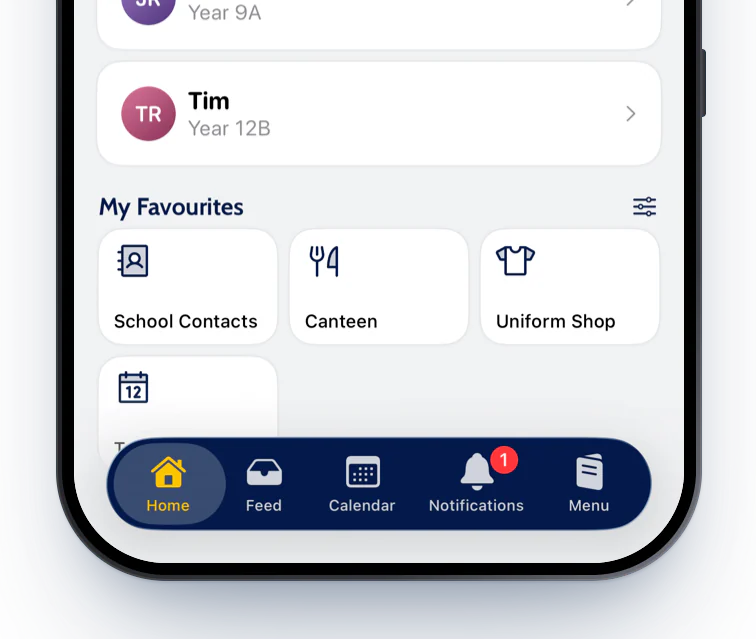
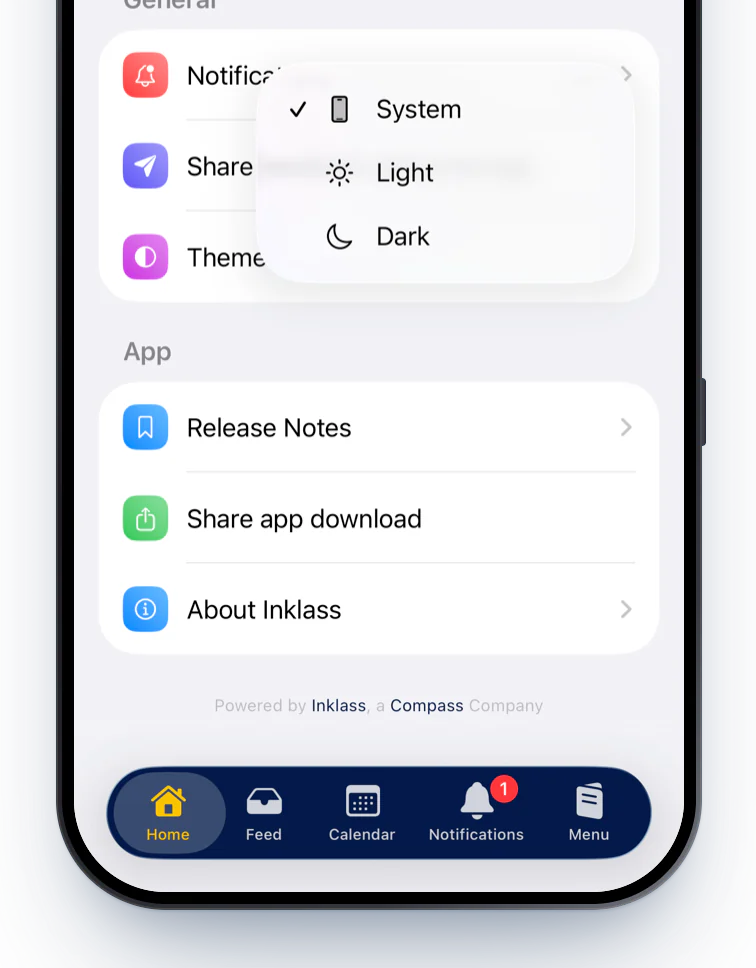
Home with the floating glass tab bar in the school's navy and gold
Liquid Glass, in your colours

Your app looks at home on the newest phones: the tab bar floats on glass in your school colours, with a selection chip that sizes to each label.

See 2 screenshots
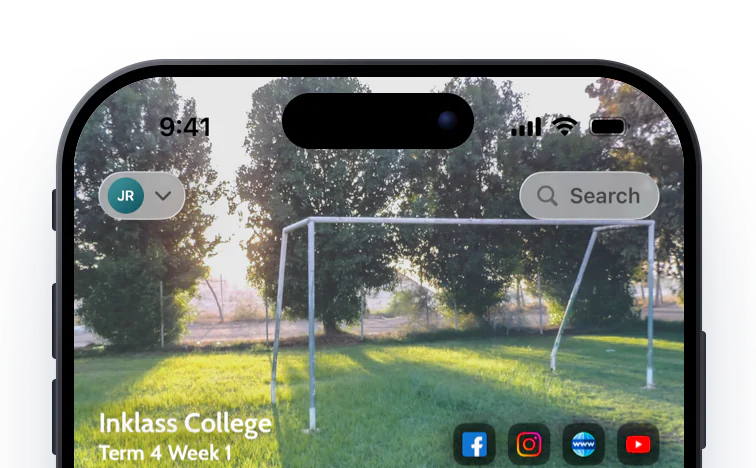
The Home banner with the account switcher at the top left and a glass Search button at the top right
Search, right on the banner

Search is now one tap from Home: a glass search button sits at the top right of the banner, beside the account switcher at the top left.

See it up close
Settings with the Theme menu open, offering System, Light and Dark
Your choice of light or dark, and a cleaner Settings

People can now choose Light or Dark, or follow their device, and Settings has been redesigned to be cleaner and easier to read.

See 2 screenshots
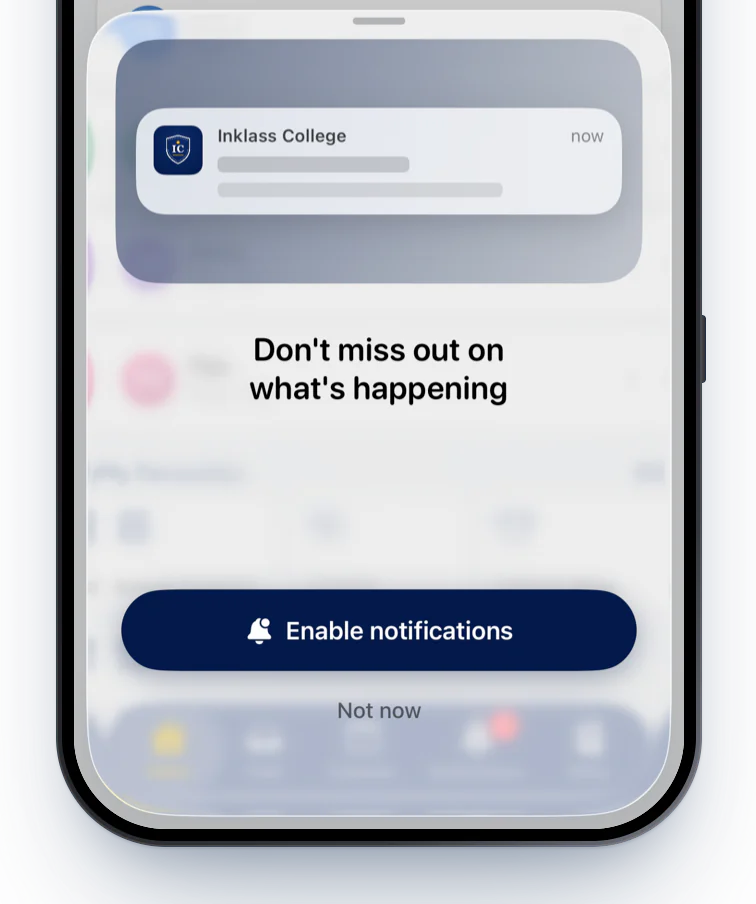
A sheet over Home with a lock-screen preview from Inklass College and an Enable notifications button
A refined notification prompt

A redesigned prompt shows people how a notification from your school will look before they turn notifications on.

See it up close

🏠 Home

Home is where every day starts, so it now does more for staff and students as well as parents.
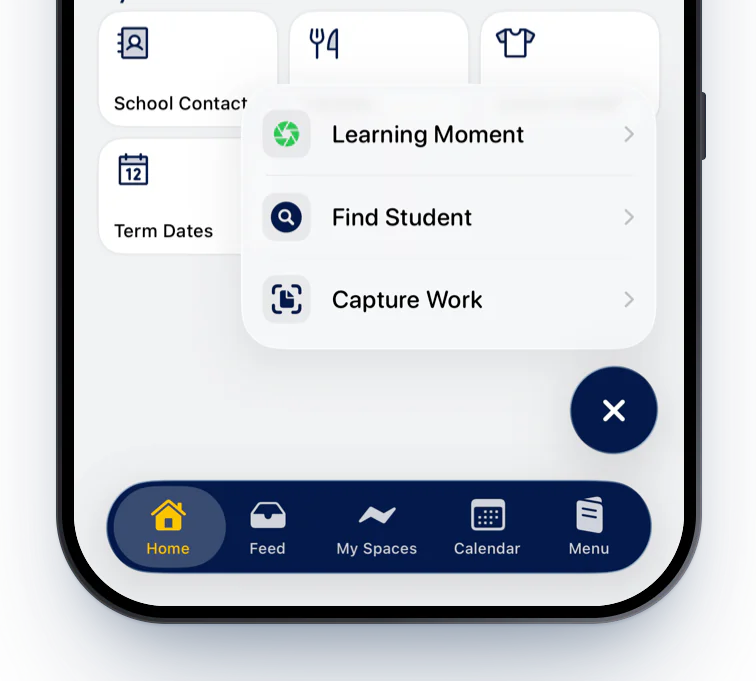
Staff Home with the + button open showing quick actions
Staff quick-action button

The jobs staff do most are one tap from Home: a floating + button opens Find Student and shortcuts for the staff tools your school has.

See it up close
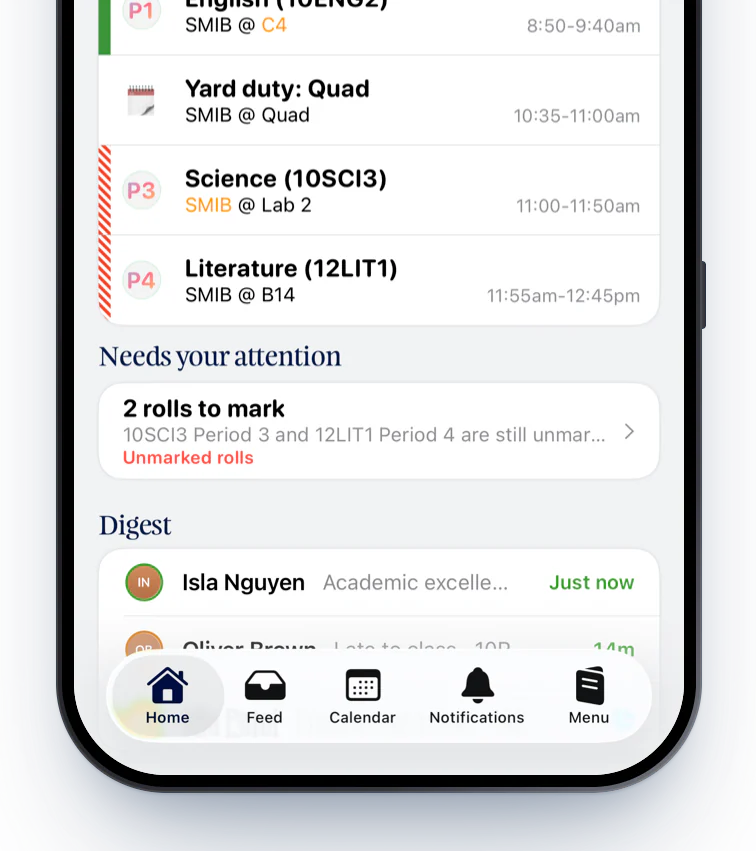
Staff Home with a Needs your attention card showing two rolls to mark
Action cards for students and staff

Action cards have always helped parents see what needs doing. They now reach students and staff too, from Insights surveys for students to unmarked rolls for teachers.

See it up close

🎓 Schoolbox

Shaped with our Schoolbox schools, so the app feels like a natural extension of the Schoolbox you’ve built.
Richer Schoolbox homepages

The homepages your team builds in Schoolbox carry over to the app more faithfully than ever, from component order to sections that start collapsed.

See 2 screenshots
Switched on per school
Learning Moments, redesigned

Capturing learning takes seconds: staff start a Learning Moment from the + button, tag students, snap or scan the work, and share it to each student’s portfolio.

See 2 screenshots
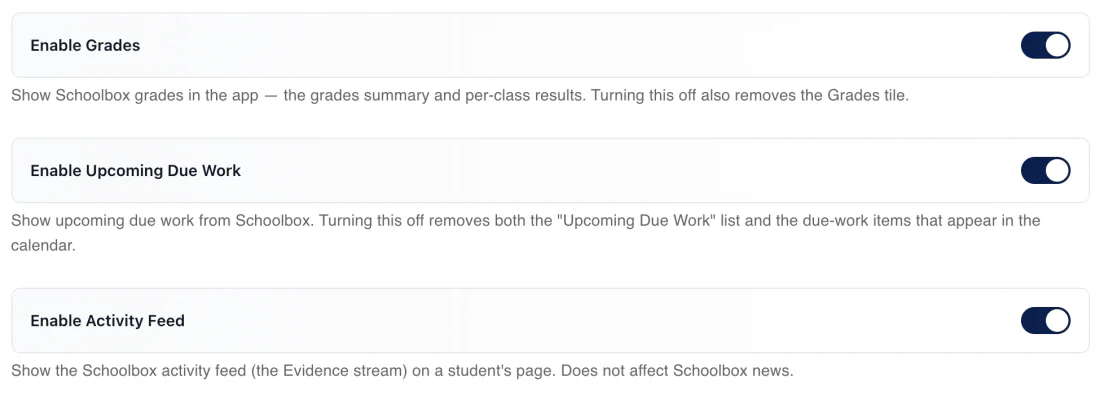
Schoolbox platform settings with switches for Grades, Upcoming Due Work and the Activity Feed
Turn off grades, due work or the activity feed

Show only the parts of Schoolbox your school uses: Grades, Upcoming Due Work and the Activity Feed can each be switched off without removing the integration.

See it up close
The app's New message composer addressed to the school office
Schoolbox mail in the app's composer

Tapping a staff photo or email link opens a message straight away: tiles and links that point to Schoolbox mail open the app’s own composer.

See it up close
Tuned for Schoolbox 26

We’ve adapted to the finer details of Schoolbox 26.x, from notification settings and day-first report dates to due work, classes with more than one teacher, and assessment marks.

See it up close

Families and staff see what matters sooner, and find what they need in a few keystrokes.
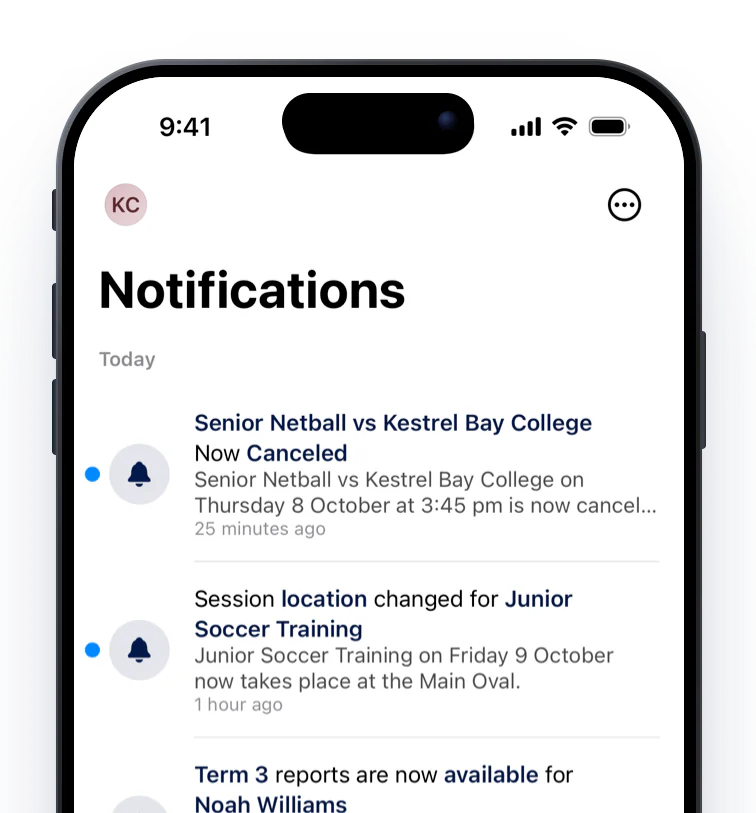
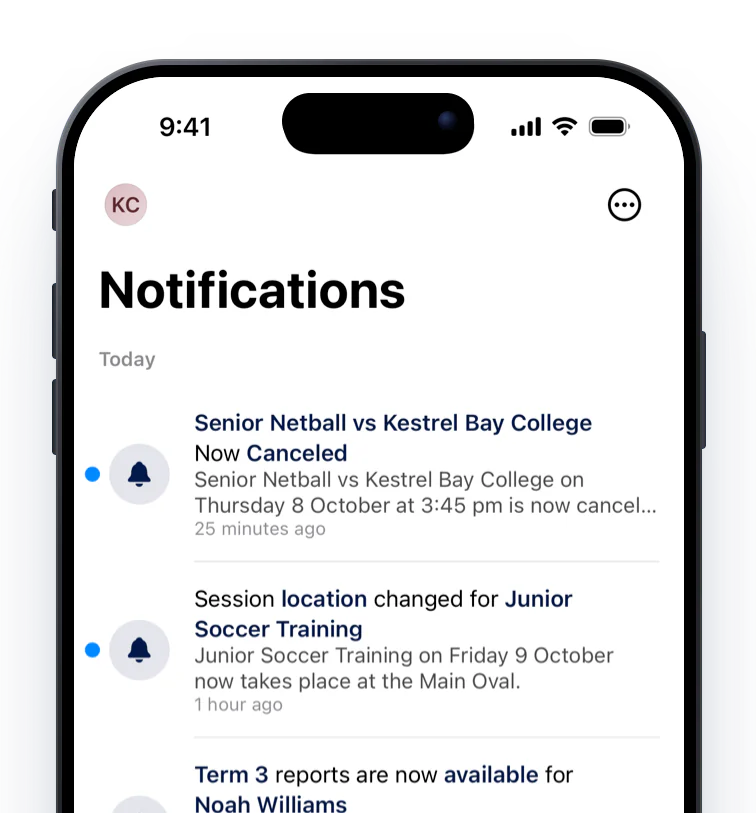
The Notifications tab with Clipboard session changes, a TASS report notice and an illness report
A refined Notifications tab

Your notifications sit in one refined list, with sender photos, an unread badge, and Mark as read, one at a time or all at once.

See it up close
Rich push notifications

Pushes show who sent them, with their photo, the post’s image and a preview of what it says, so families can take in school news at a glance.

See 2 screenshots
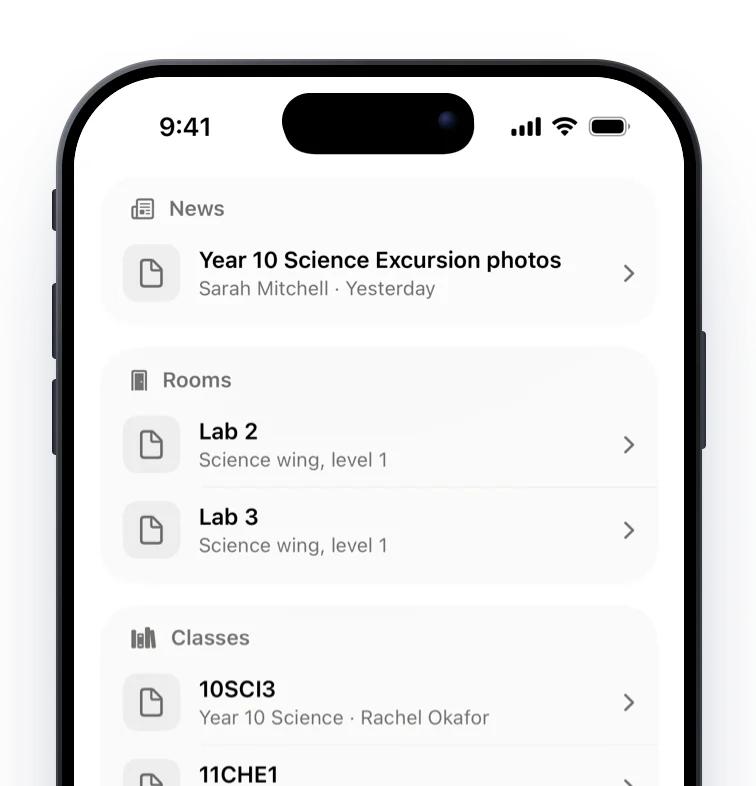
Search results for Sci grouped into News, Rooms, Classes and People with filter chips
Search, redesigned

Search has been redesigned: it opens from the banner, groups results as you type, and finds more than before, including rooms and yard duties.

See it up close
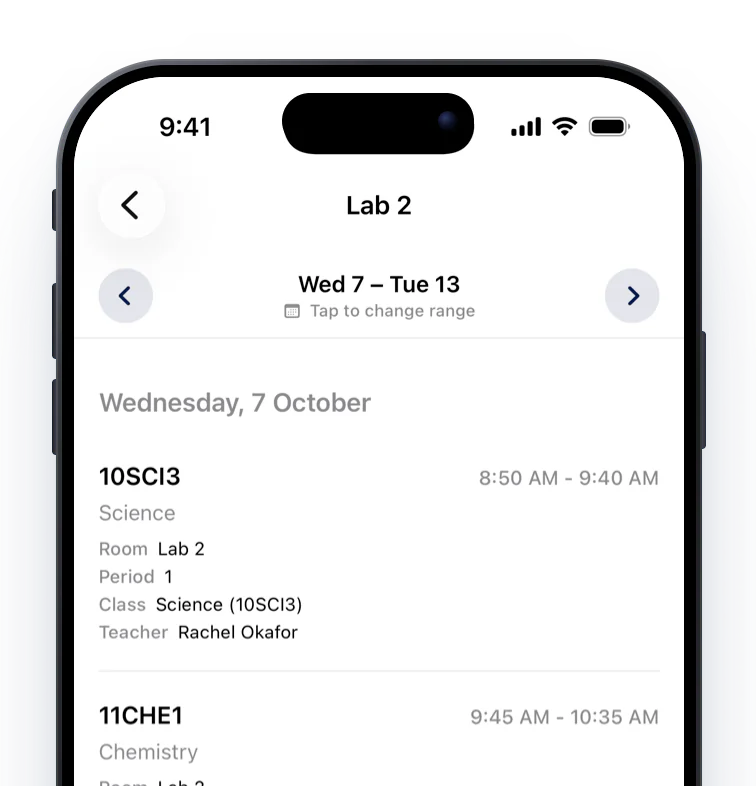
Lab 2's schedule for the week with an Email teachers button
Rooms and yard duties

Finding a free room or who’s on duty is a quick search, not a walk to the office: staff can open any room’s or yard duty’s schedule, starting from today, including who’s rostered on.

See it up close

🏉 Clipboard

Co-curricular life moves fast. The app keeps families in step with it.
Clipboard sessions, refined

The Clipboard experience families already use is refined. Sessions still show everything your coaches record, from the result, location, team and staff to uniform, meeting point and transport, now laid out more clearly in the new design.

See 5 screenshots
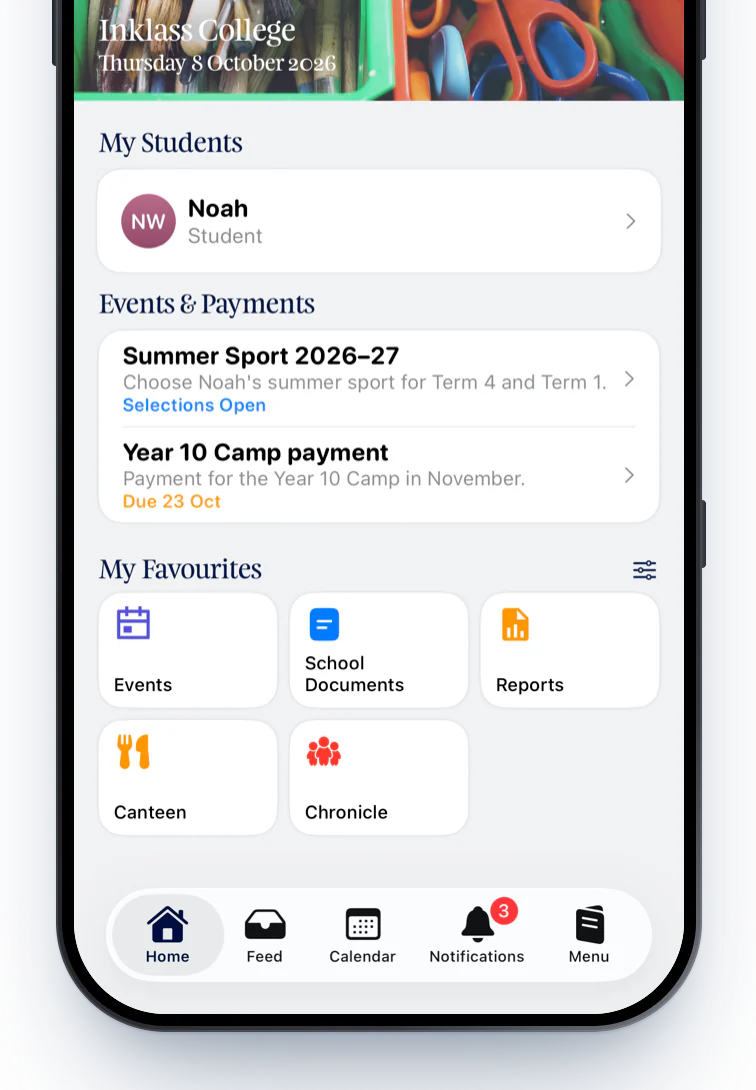
Parent Home with My Students, an Events & Payments card showing open Summer Sport selections and a camp payment, and My Favourites below
Activity selections, improved

Activity selection cards on Home are improved. Alongside the activities with options, they now also cover activities families select directly, such as Dance, Swimming or Rowing, and each card opens the right place.

See it up close

🧰 Staff tools

Fewer trips to the office for the small jobs that fill a staff member’s day.
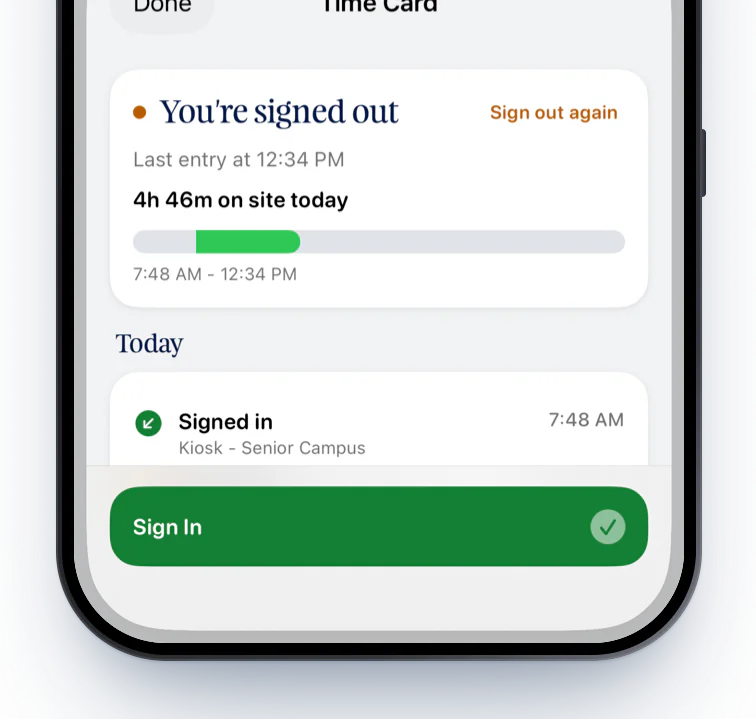
The Time Card sheet showing time on site today and a Sign In button
Time Card

Staff sign in and out right from the app: a native Time Card sheet shows the day’s time on site and the school’s sign-out reasons, replacing the web page the tile used to open.

See 2 screenshots
Upload school photos

Staff with access can update ID photos on the spot: search for a student or colleague, take or choose a photo, and upload it.

See 2 screenshots
A student's attendance at a glance

Staff opening a student see their attendance rates, a subject-by-subject breakdown, days missed each term and a log of their absences, with a tap through to personal information.

See 2 screenshots

📅 Calendar

Calendars that are clearer at a glance, wherever people check them.
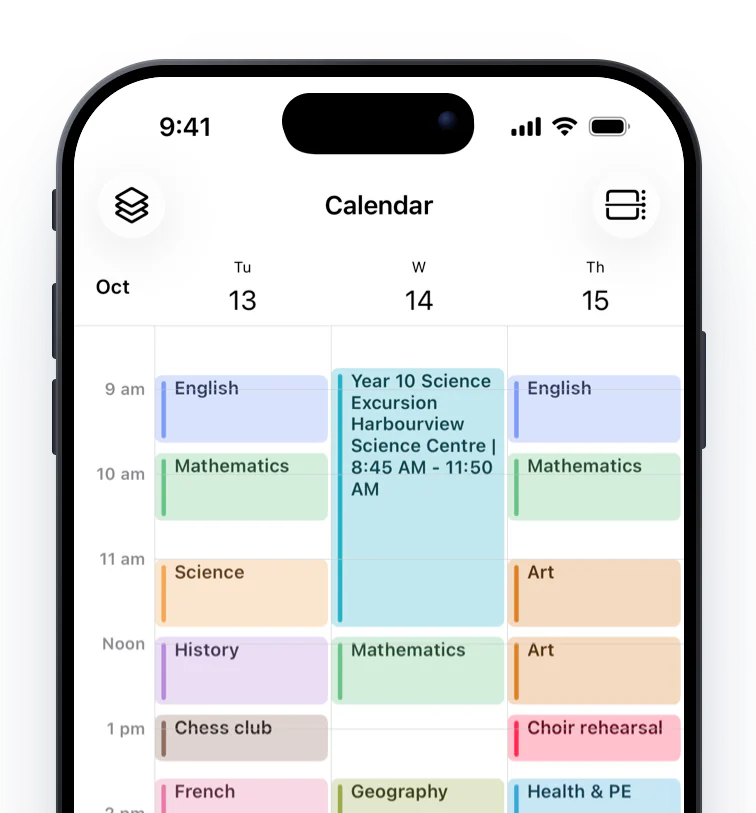
The 3 Day calendar for 13 to 15 October in subject colours, with a full-width Year 10 Science Excursion on Wednesday morning
Rolling out
3 Day view

Three days fit on one screen, and each day opens at the start of the school day: a new 3 Day mode joins Daily, Terms and List.

See it up close
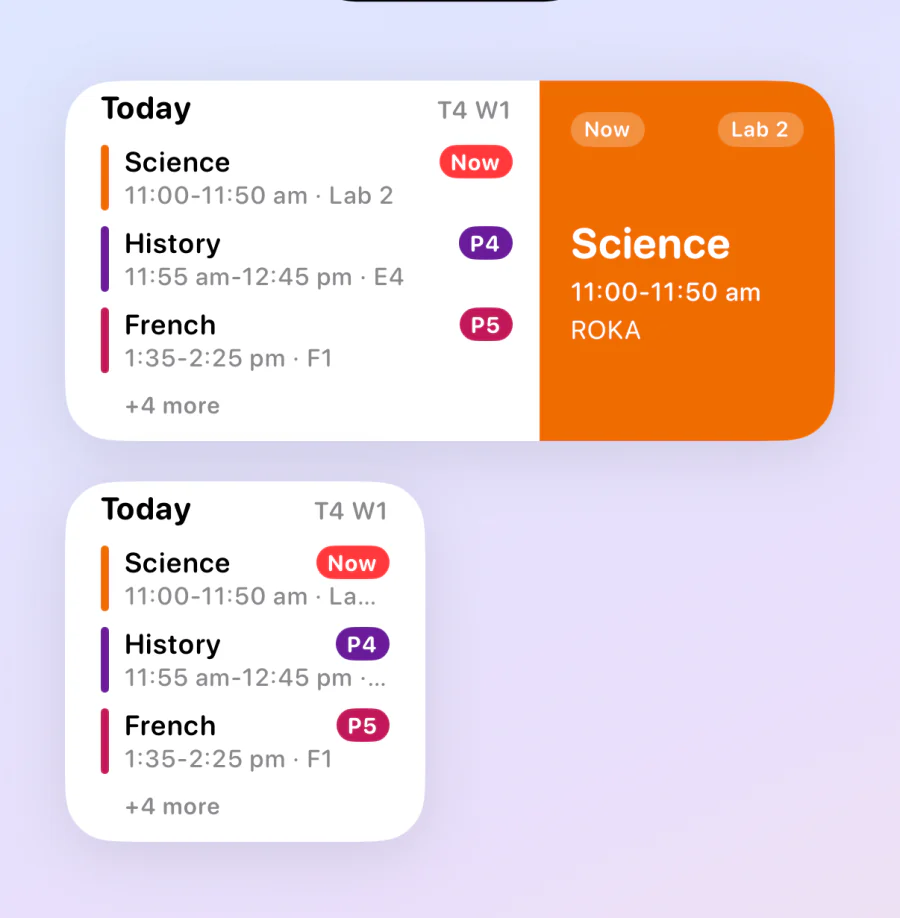
Calendar widgets showing today's Science, History and French classes with the current class highlighted
Calendar widget

Today’s timetable is on the home and lock screens without opening the app: the Calendar widget comes in small, medium and lock screen sizes, in subject colours.

See it up close
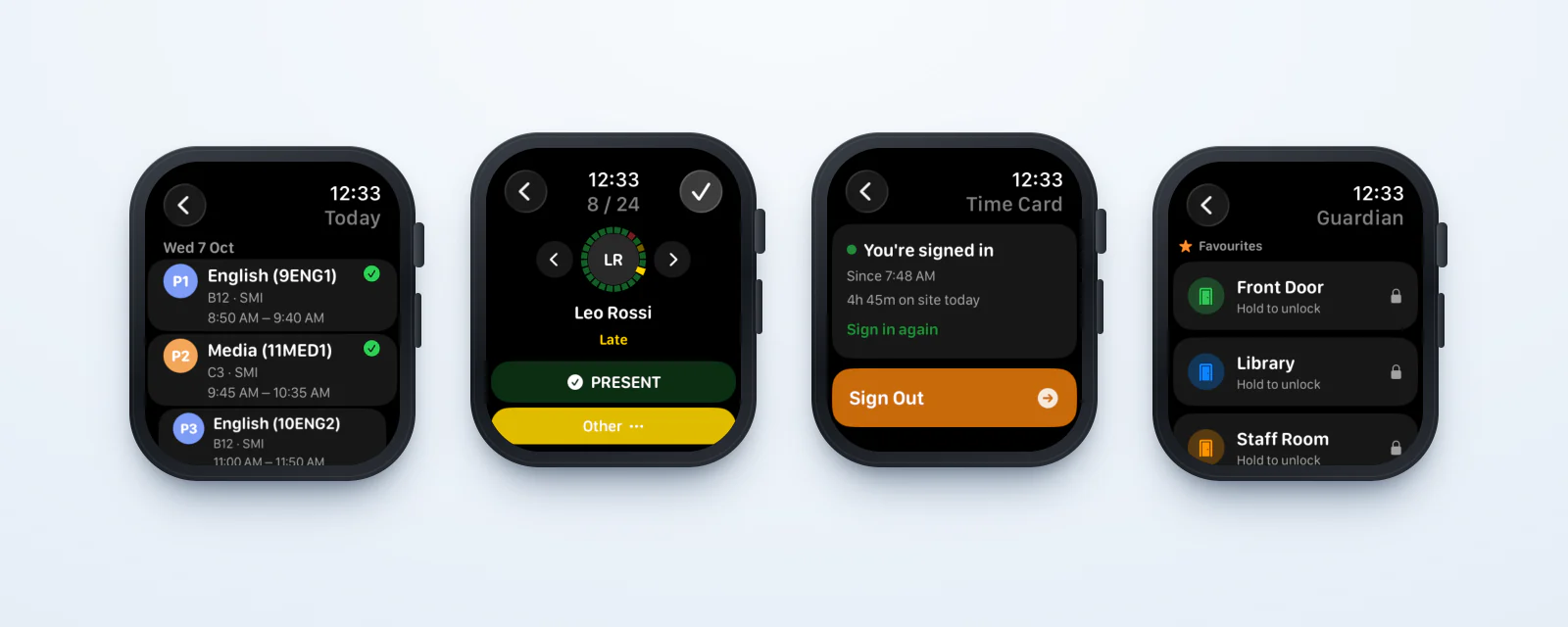
Four Apple Watch screens: today's classes, roll marking, Time Card and Guardian doors
Rolling out
Inklass on Apple Watch

Today’s classes on the wrist, with complications that put the next class, the term and week, and rolls still to mark right on the watch face.

See 2 screenshots
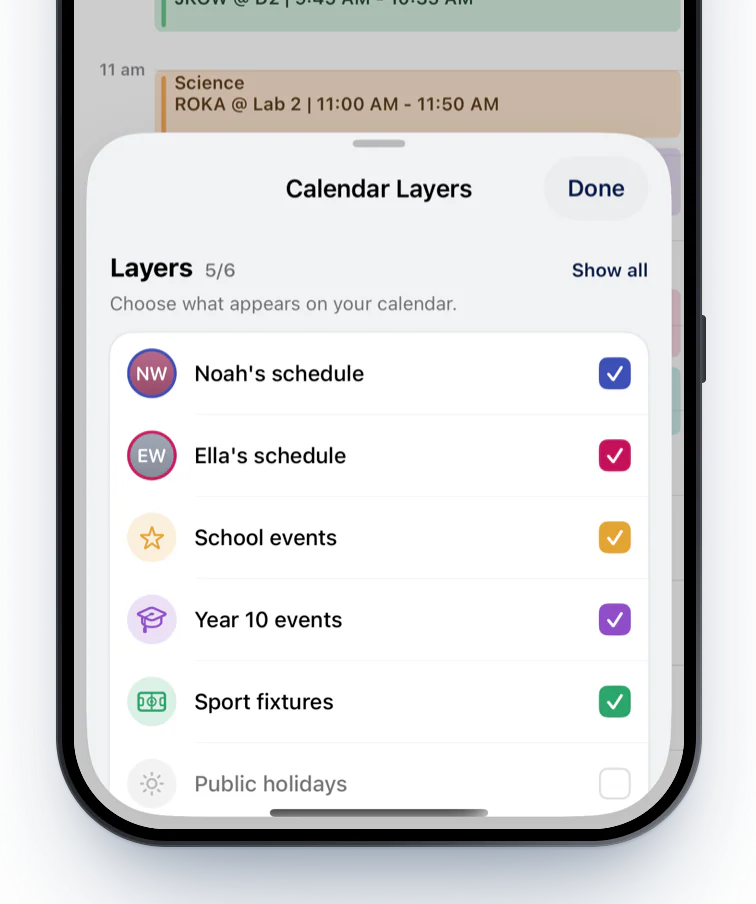
A half-sheet listing calendar layers for each child, the school and sport
Calendar layers

The calendar shows the layers each person chooses, and a half-sheet shows or hides them, so everyone sees the calendars that matter to them.

See 2 screenshots
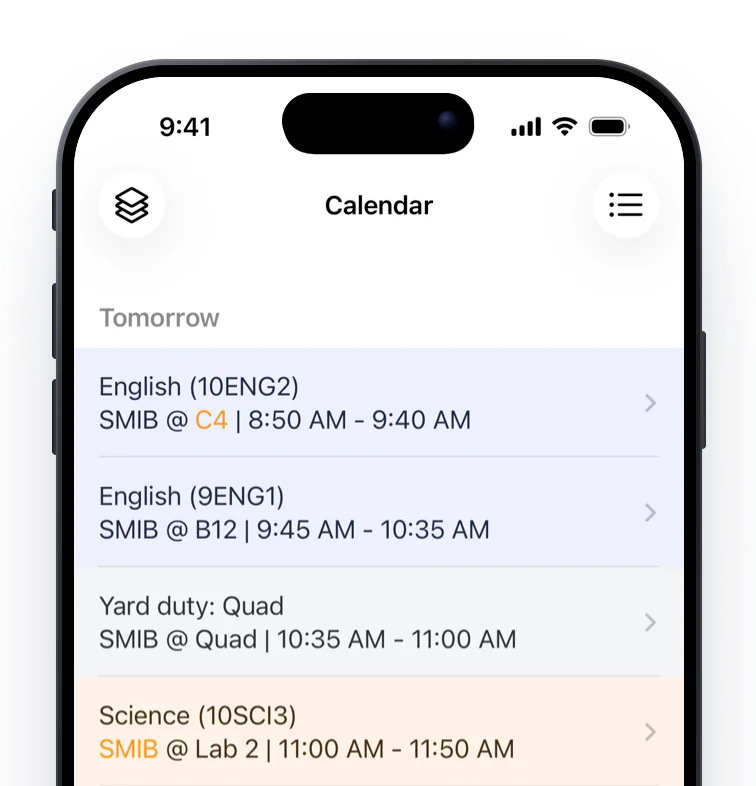
A calendar list showing teacher and room on each class, with a room change highlighted
Teacher, room and changes

A moved room or a relief teacher stands out: calendar events show teacher and room together (“SMIB @ B12”), with room changes and substitute teachers highlighted.

See it up close

📊 Synergetic

Built on the data you already keep in Synergetic, with less to configure and less to maintain.
School activities in teal

Synergetic attendance is colour-coded, so families can tell a true absence from a school activity at a glance. Excursions, camps and exam leave show in teal as “School activity”, next to red absences and amber late arrivals.

See 2 screenshots
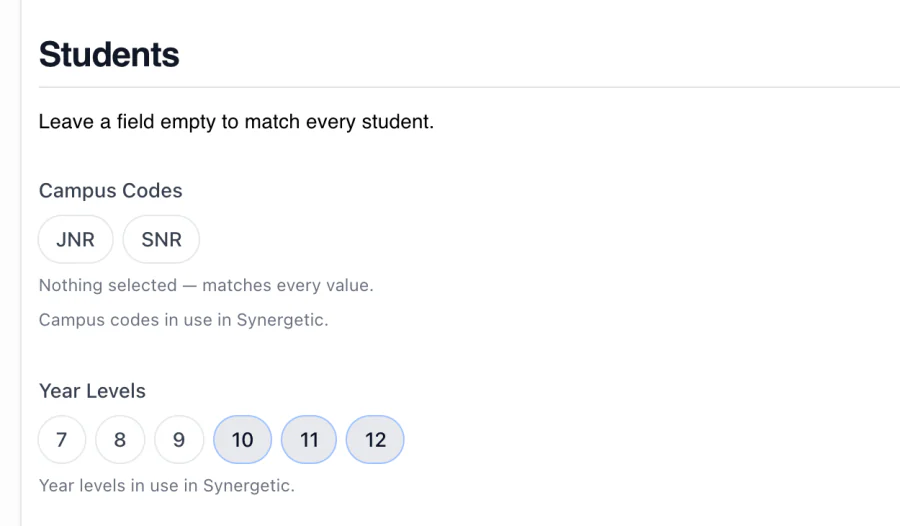
Synergetic Student Segments editor: a Senior School segment matching year levels 10 to 12, emailing the senior school office
Absence emails routed by student segment

Route absence notification emails by campus code, year level or both, each segment with its own recipients.

See it up close
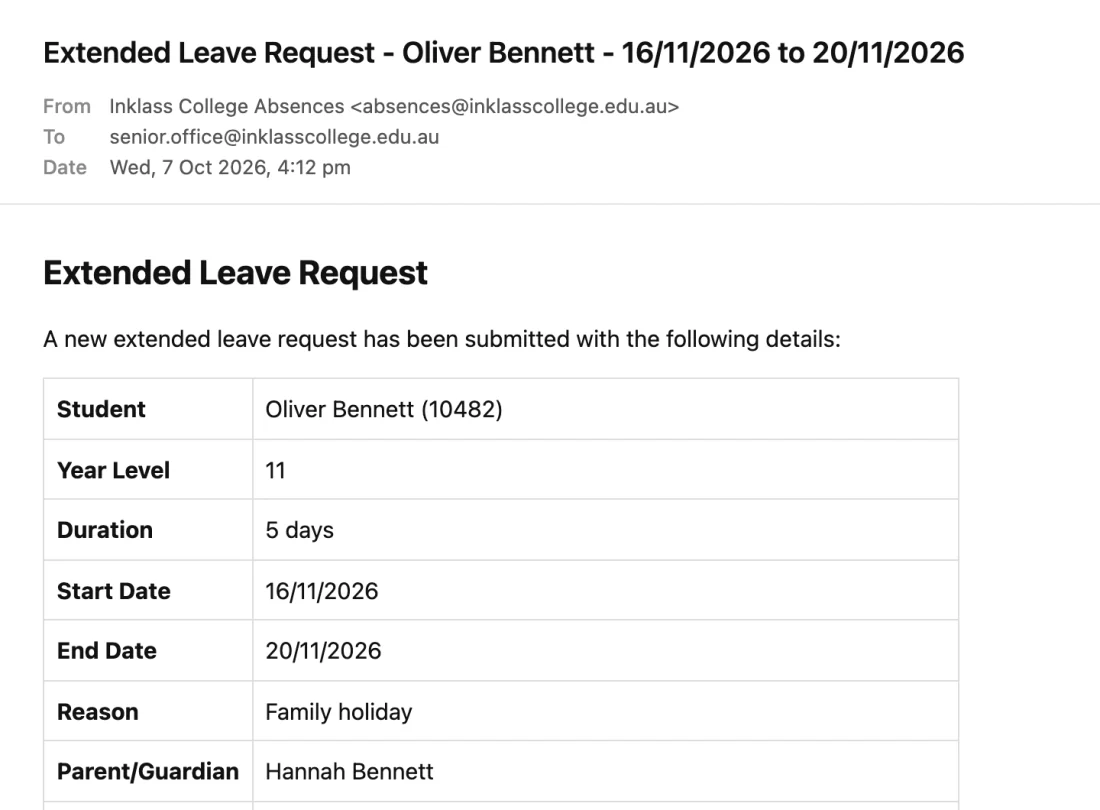
An absence email to the office showing the student, their year level, duration, dates and the segment that sent it
Better absence emails to the office

Absence emails now include the student’s year level and a line naming the segment that routed them.

See it up close
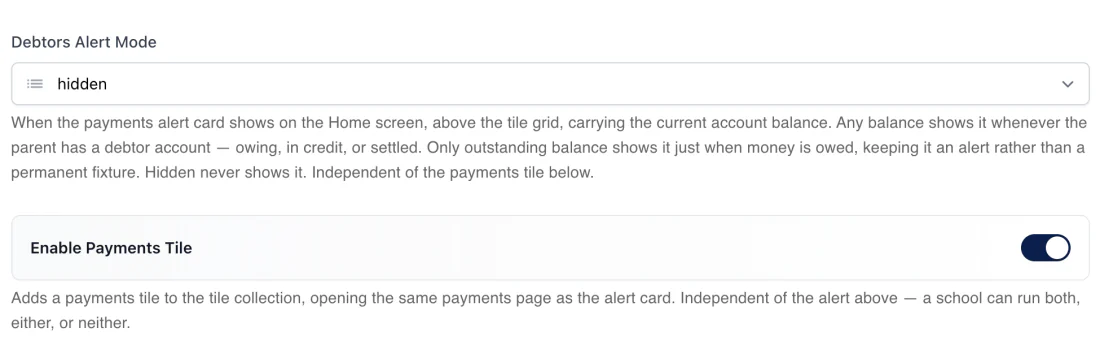
Synergetic settings for the payments alert card and the Payments tile
Switched on per school
Payments card and Payments tile

The fees card appears when it should: choose the Home alert card (any balance, only when money is owed, or hidden), a Payments tile, or both, and set the label families see.

See it up close

🙋 Attendance and absences

Attendance families can read at a glance, and absences they can report from anywhere.
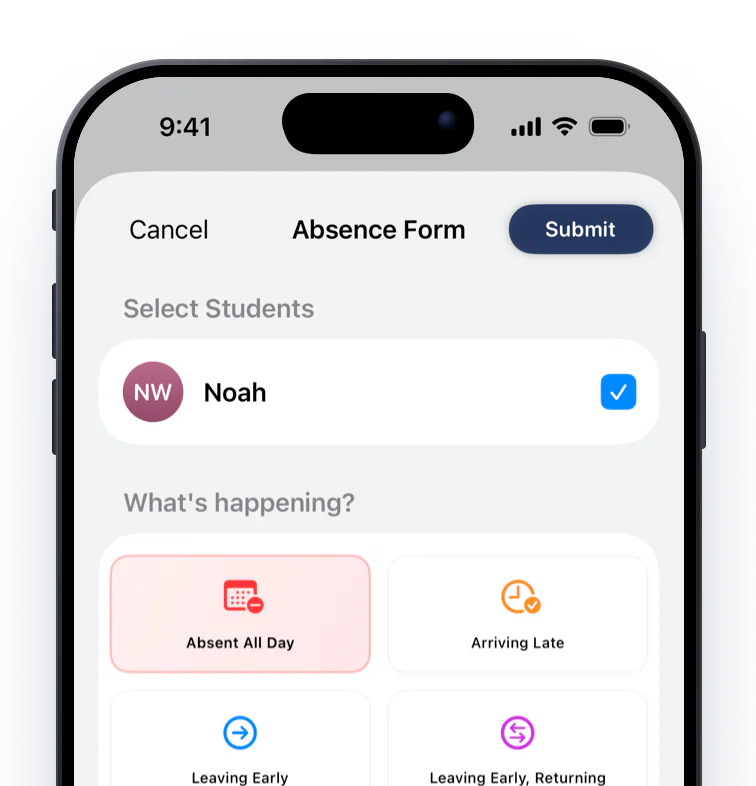
The absence form with a student selected, absence types, a multi-day date range and reasons
Report and explain absences

Parents report absences (all four types, several days at once, with attachments) and explain existing ones in a single note.

See it up close
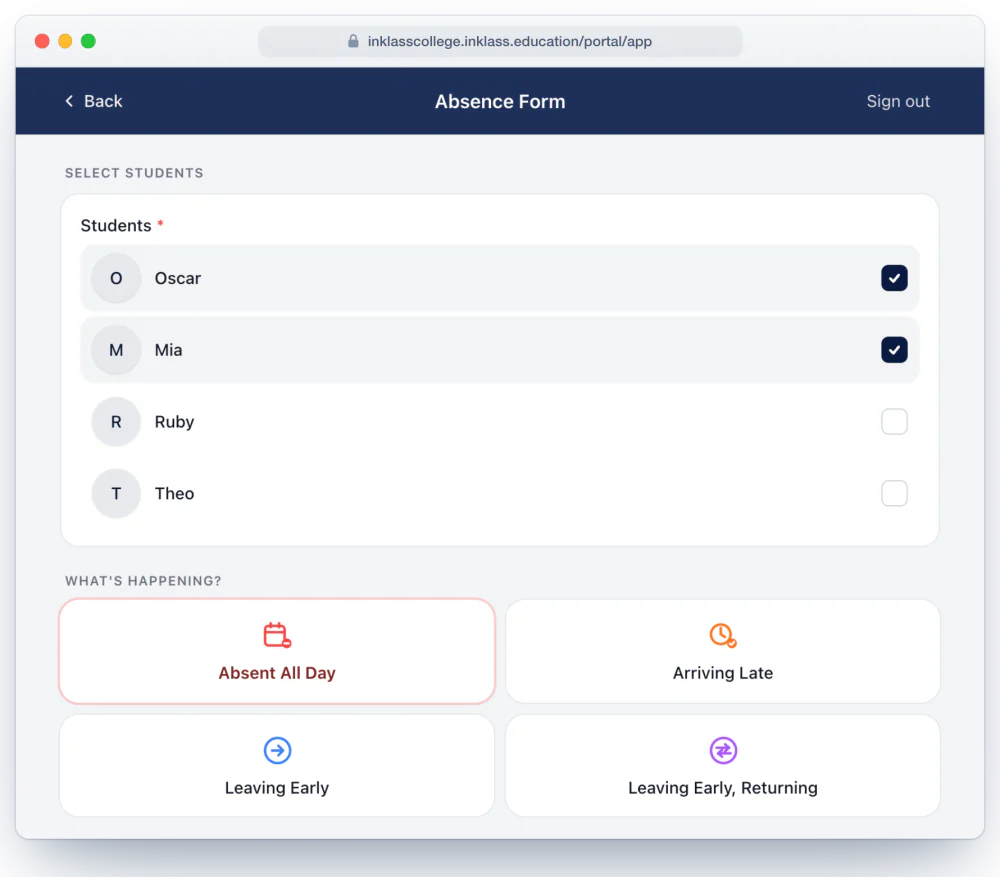
The absence form in a web browser, with two of four children ticked and Absent All Day chosen from the four absence types
Absence form in a browser

Families who don’t use the app can sign in with the school login at your school’s Inklass web address and submit an absence.

See 3 screenshots
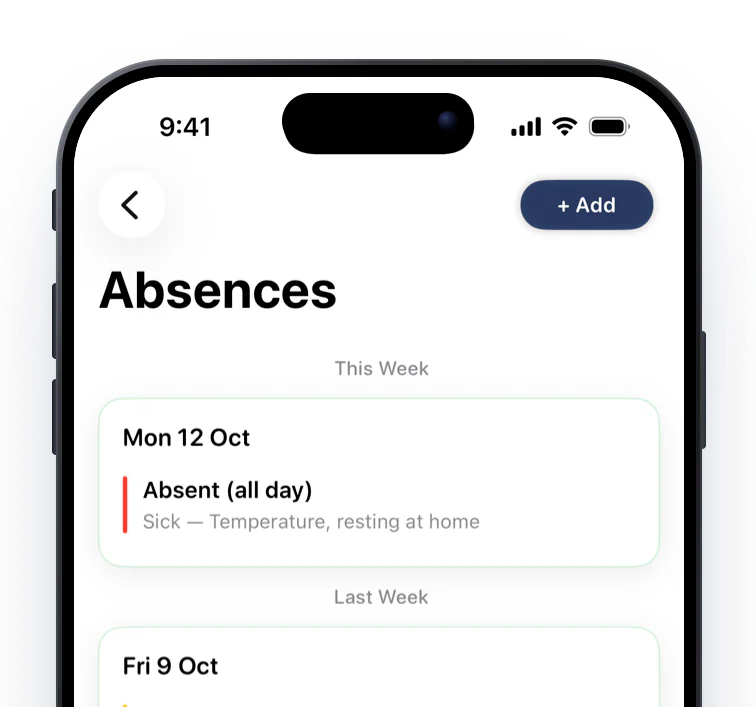
A student's absences grouped by week: a red sick day, an amber late arrival and teal school activities
Absences, colour-coded

A grouped absences view, newest week first, with the reason and time on each row and each absence coloured by type.

See it up close

📇 Contacts and directories

Privacy you control field by field, and directories families can actually use.
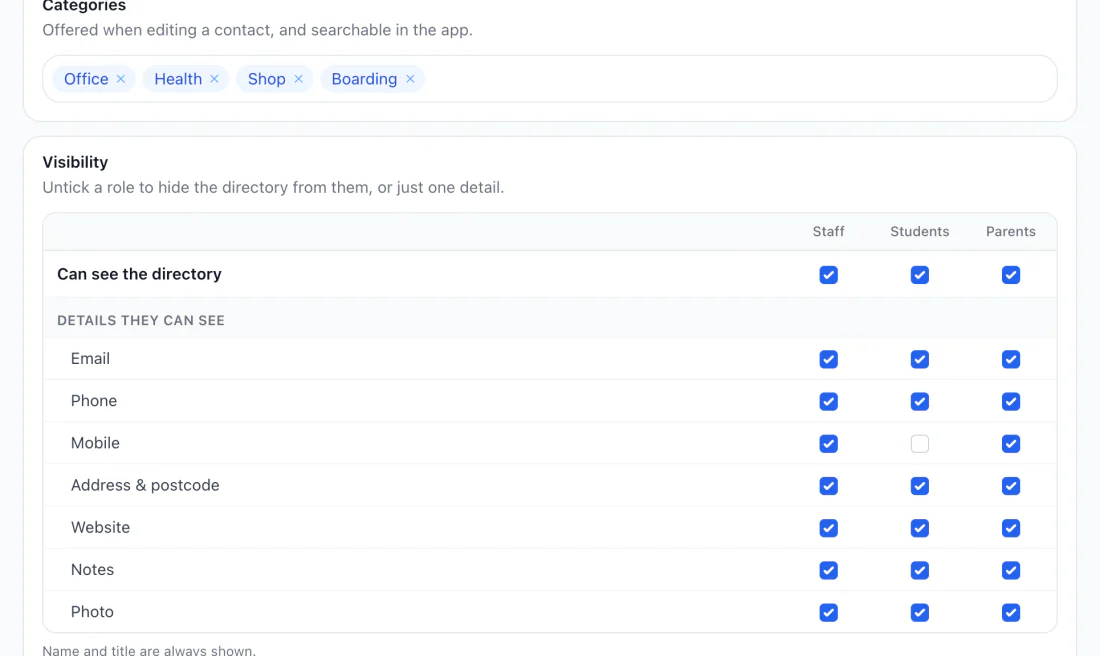
Directory settings with categories and a visibility grid of which details staff, students and parents can see
Field-level visibility for contacts

Each contact and each detail shows only to the people it’s meant for: choose which roles (staff, students, parents) see each directory and each field.

See it up close
Categories and sort order

Contact categories become searchable tags in the app, and each directory sorts by order added, A to Z, or Z to A.

See 3 screenshots
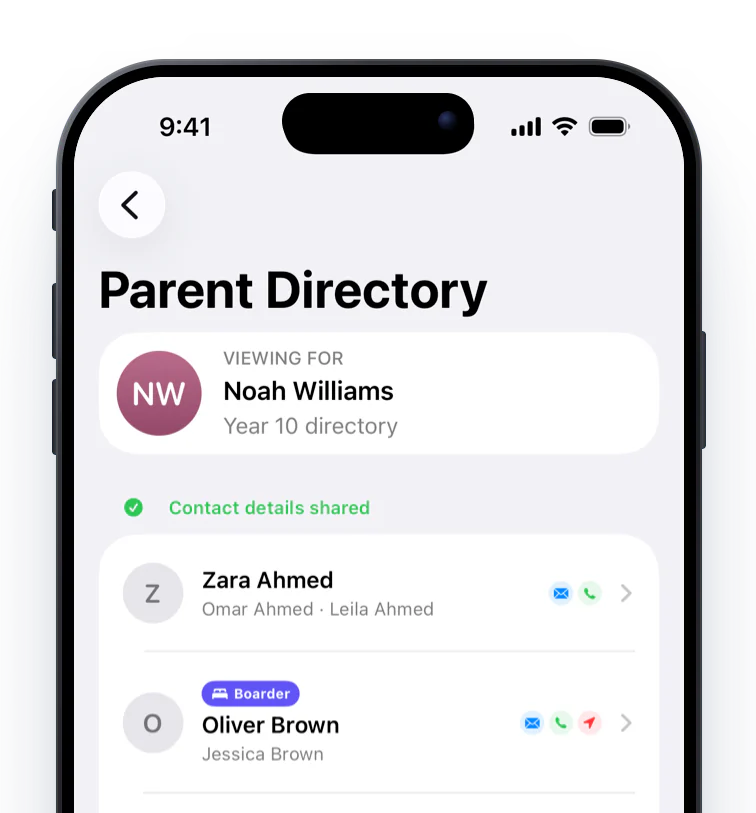
The Parent Directory viewing Year 10, with families listed and a count of others who chose not to share
Parent directory privacy

Families who haven’t agreed to share their details are shown as a single count instead of being listed, so nobody can see who opted out. A “Viewing for” header shows which child’s cohort you’re browsing.

See it up close
My Teachers

Each of a child’s teachers with their photo and class, plus an Email Teachers sheet.

See 2 screenshots
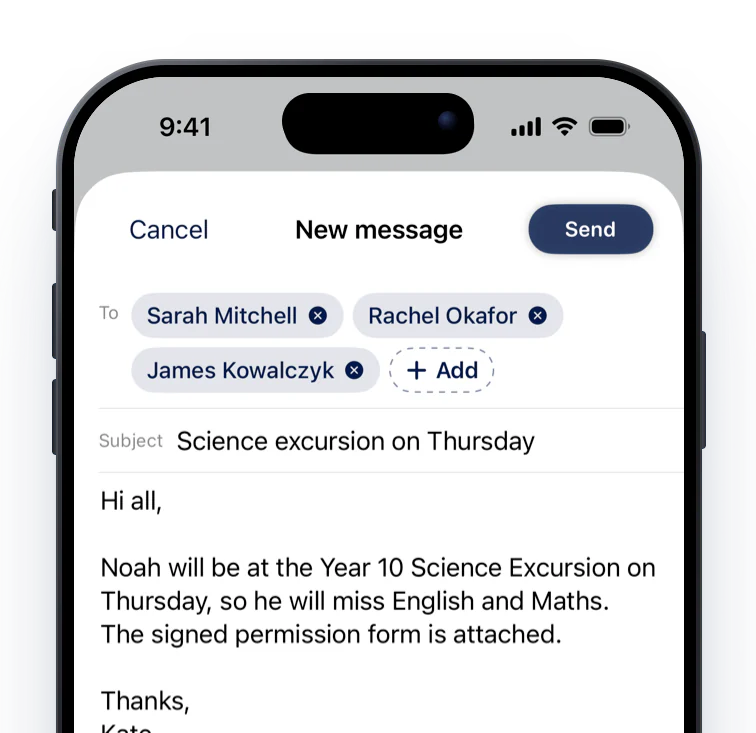
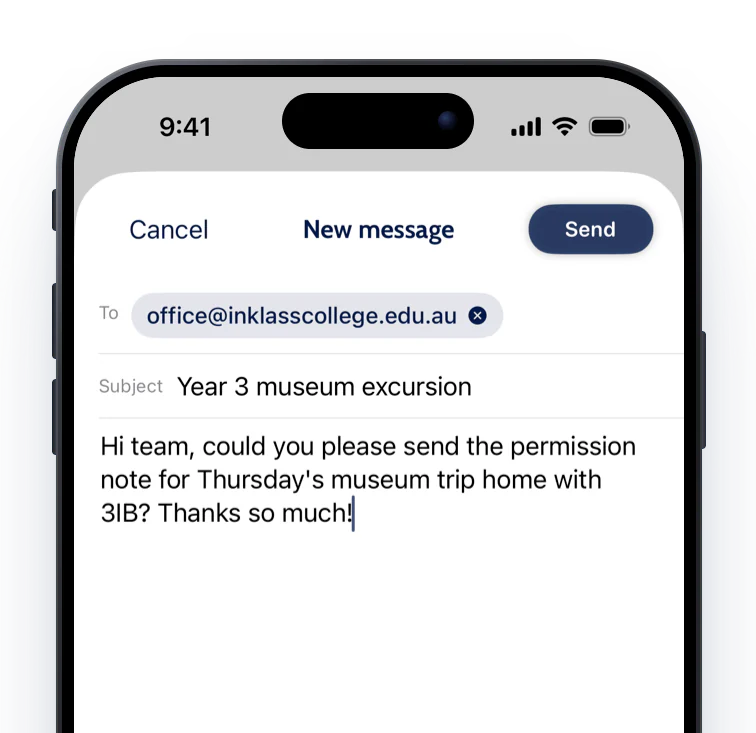
A new message to a child's teachers with the subject, message and an attached permission form
Switched on per school
Email a child's teachers

Parents email their child’s teachers from the app, with attachments, instead of copying addresses into a mail app.

See it up close

🧭 Compass

The everyday work of teaching, from the roll to the lesson plan to the Chronicle, now fits in a teacher’s pocket.
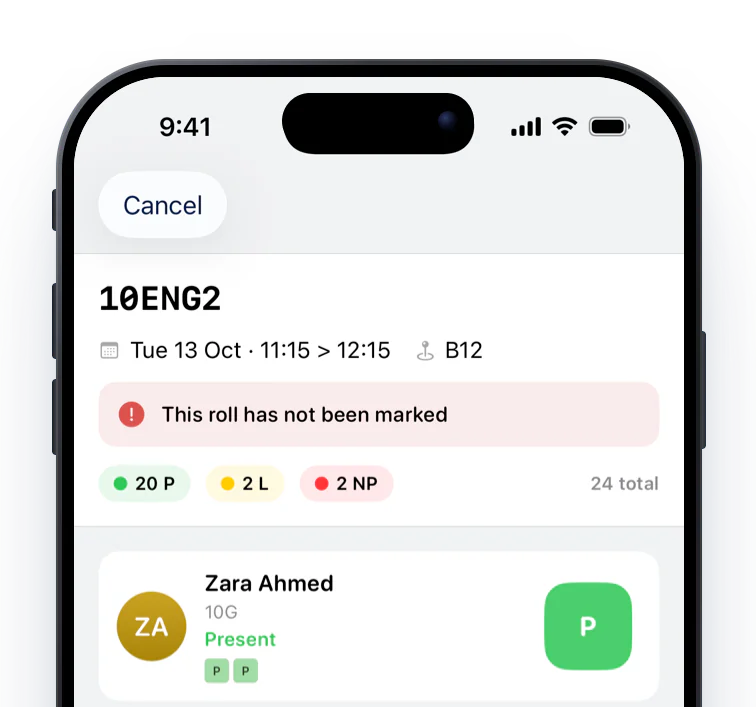
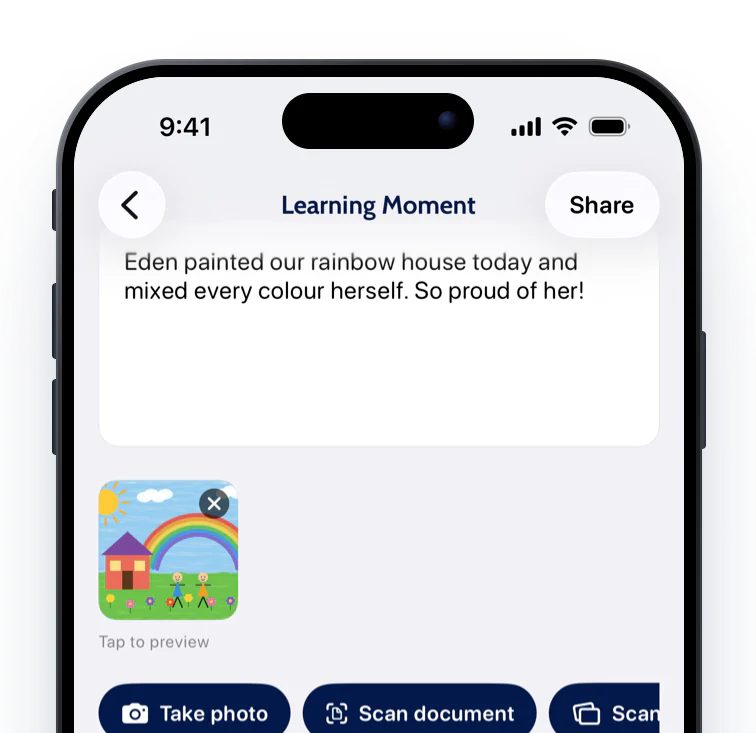
Class pages, redesigned

Class pages have a new design: a banner, the roll, attendees with photos, the lesson plan and teacher notes, resources and class news, all on one page.

See 4 screenshots
Roll marking for 10ENG2 with Present, Late and Not Present statuses and the Save Roll button
Roll marking

Teachers can mark the roll from anywhere in the school: tap to cycle Present, Not Present and Late, starting from your school’s default status, then Save Roll.

See it up close
Writing a note in the observation composer with a photo attached and a student tagged
Quick Observations

One composer for capturing a moment: tag students, add a note, photos or scans, and share. Compass saves it as a Chronicle entry, Schoolbox as a Learning Moment.

See it up close
Classroom tools

The small jobs at the front of the room, done from a phone: pick a random student, generate teams, or set a running order.

See 3 screenshots
Chronicle digest on Home

The Chronicle digest staff rely on is now right on Home: the latest entries from across the school, plus upcoming birthdays.

See 2 screenshots

🏫 TASS

More of Parent Lounge, without the trip to the web portal.
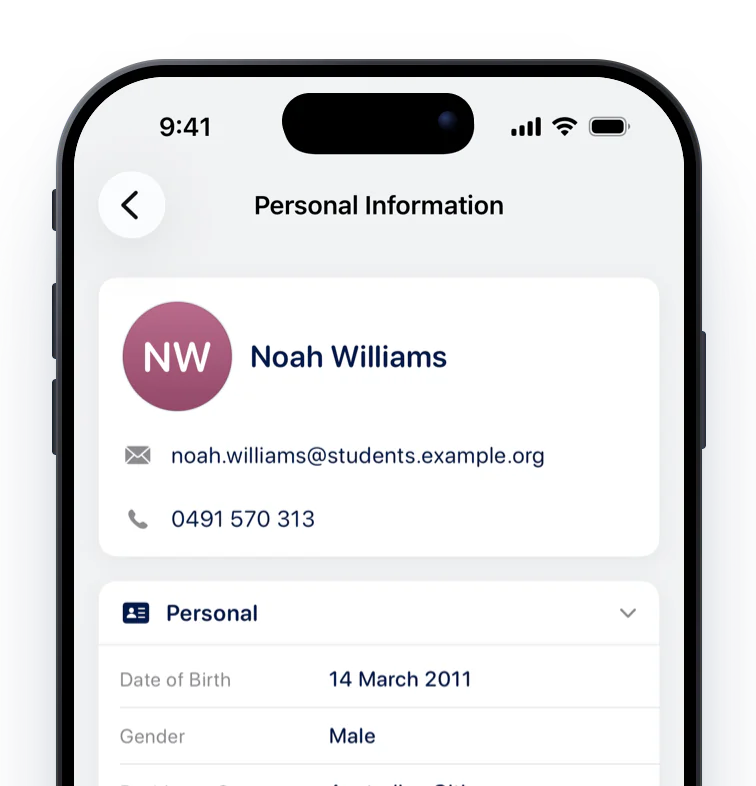
Personal Information with Personal, Enrolment and Student Details sections
Switched on per school
Student Details from Parent Lounge

The Parent Lounge Student Details page appears in the child’s Personal Information, merged with Schoolbox data where you have both, so families don’t need the web portal to check them.

See it up close
The Notifications tab with a TASS illness report alongside Clipboard session changes
TASS notifications

Parent Lounge notifications, including reports and sickbay visits, appear in the Notifications tab once each kind is switched on in your TASS settings.

See it up close

🤝 Interviews

Interview night is one of the busiest moments in a school’s year. Booking is now clearer for everyone.
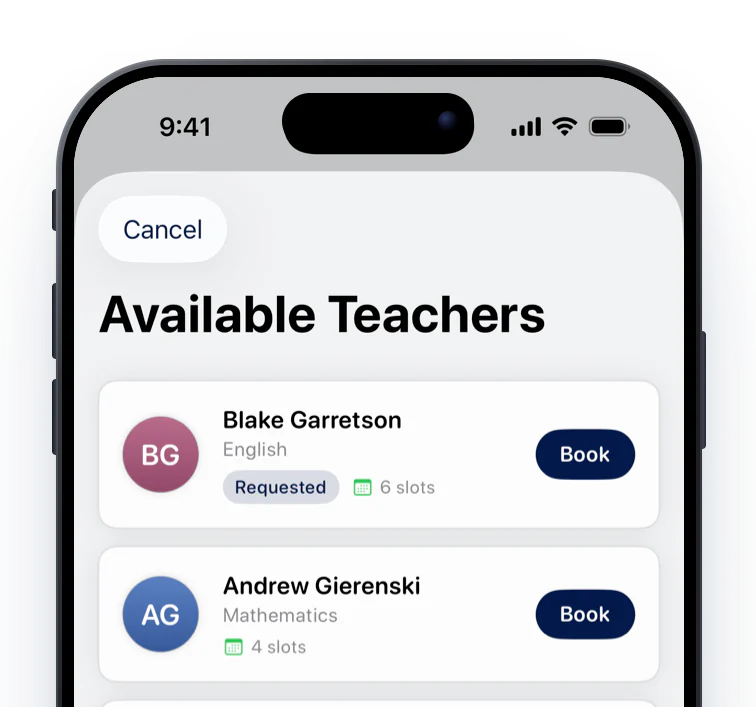
Conferences

A smoother booking experience for everyone: students book their own interviews, staff see their hosting schedule, and online interviews get a Join Meeting button.

See 2 screenshots
Available teachers listed by name with their subject and a Book button
Clearer booking slots

Booking rows lead with the teacher’s name, and each time slot shows the day it belongs to.

See it up close

📰 News and websites

Your news reaches more of your community, and looks the way you intended.
Rolling out
Post translation

More of your community can read your news in their own language: readers can translate a post into Simplified or Traditional Chinese, Arabic, Vietnamese, Hindi or Punjabi.

See 2 screenshots
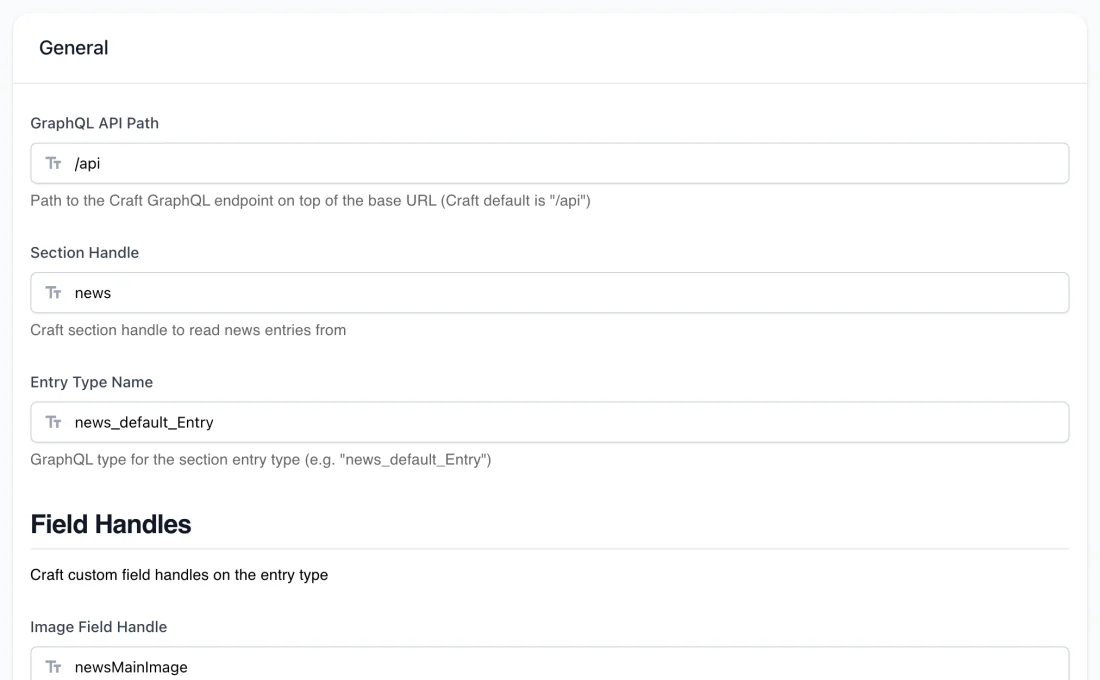
Craft CMS configuration for website news
Craft CMS website news

A new Craft CMS platform pulls stories from your website’s GraphQL API into the Featured News strip on Home.

See it up close
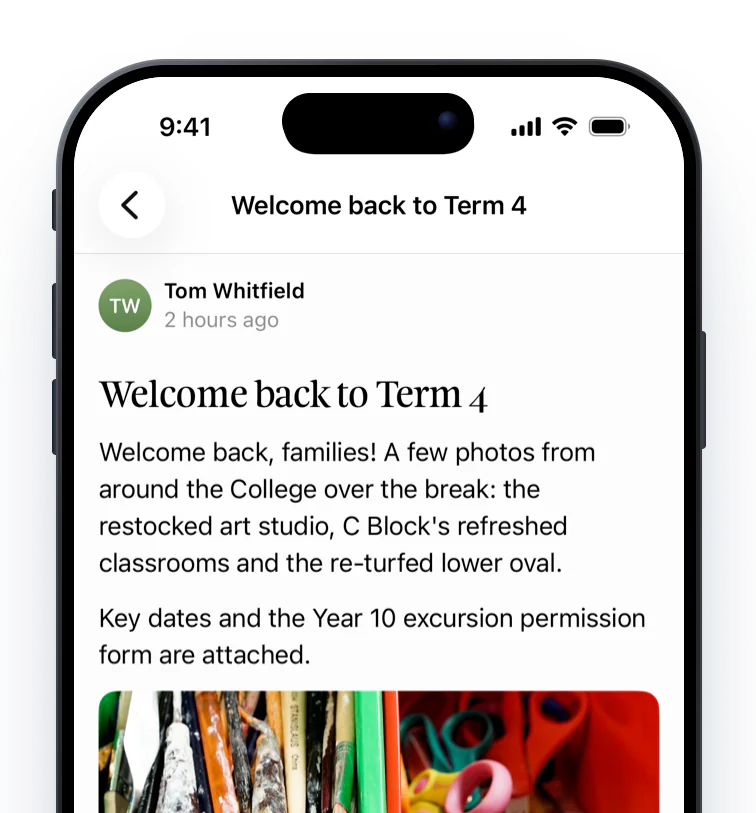
A news post with a photo collage and attachments with coloured file icons
Image galleries and file icons

Posts with several images show a collage that opens a full-screen gallery, and attachments show an icon for their file type.

See it up close
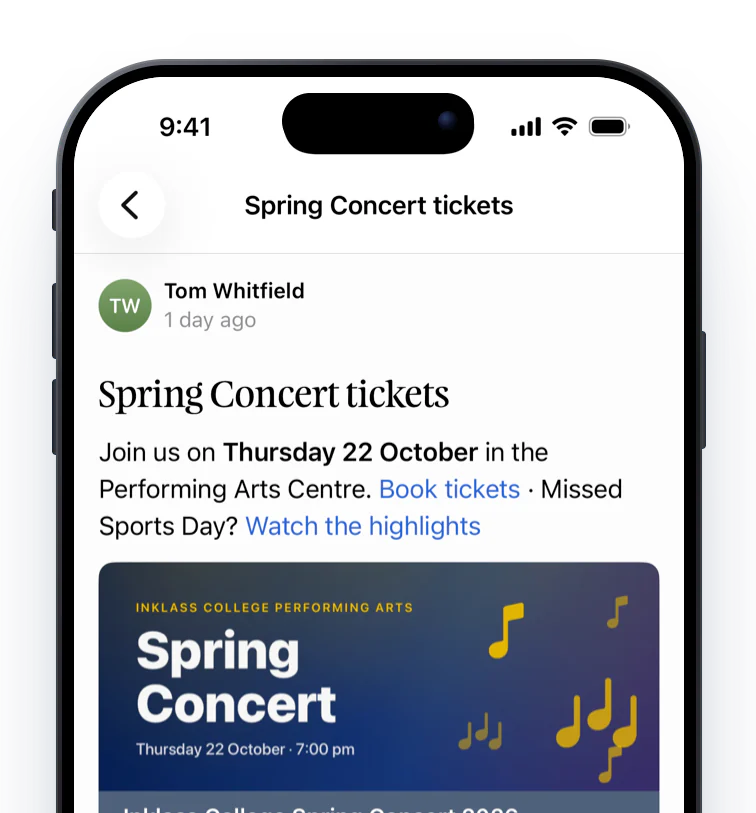
A news post with a ticketing link preview card and a video card
Link previews and video cards

Links in posts to sites such as TryBooking, Humanitix, Issuu and YouTube show as preview cards, and embedded videos show as watch cards.

See it up close
The school bulletin, first in the Feed

The bulletin your staff keep on the school homepage now leads the priority strip at the top of the Feed for staff, so it’s the first thing they see, and opens to the full notice.

See 2 screenshots

🧩 Dashboard

More control for your marketing and admin teams, with no app release needed.
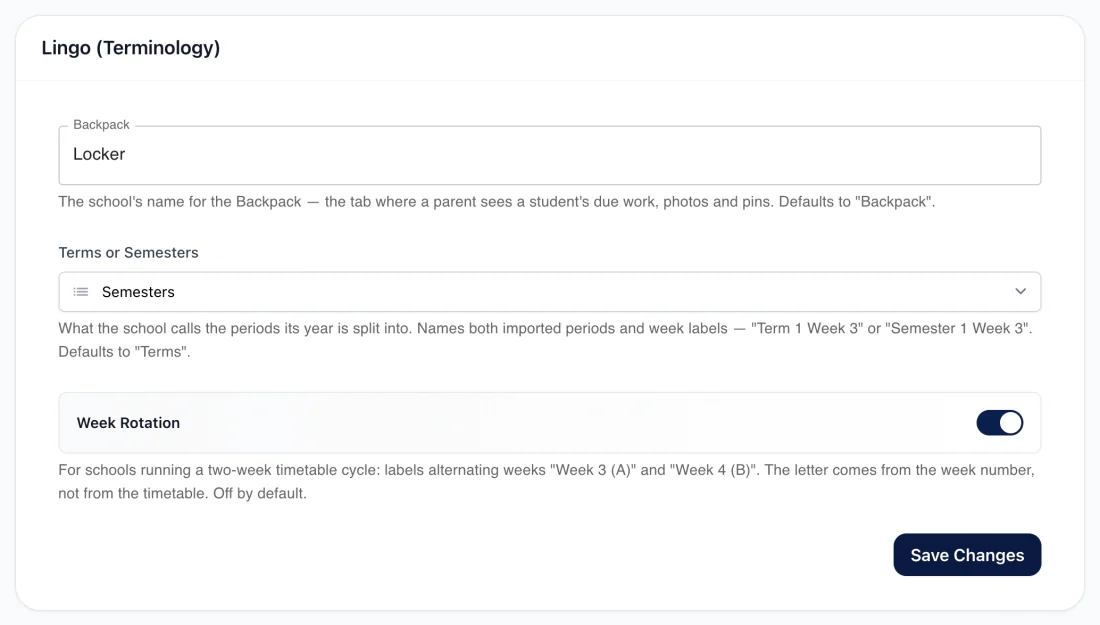
Lingo settings with Semesters chosen and Week Rotation switched on
Terms, semesters and week rotation

Organisation Attributes, Lingo: choose Terms or Semesters (“Semester 1 Week 3”), turn on Week Rotation for alternating A and B weeks, and rename the Backpack tab.

See 2 screenshots
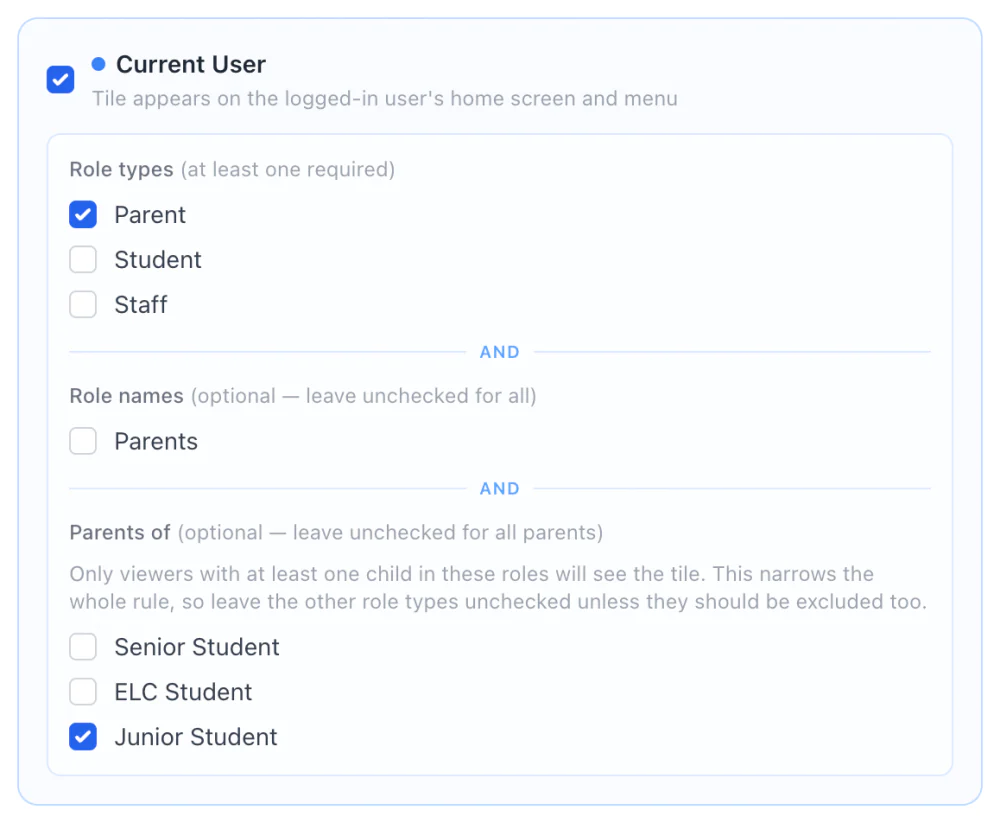
Tile audience settings showing Parents of Junior Student
Tiles for parents of a role

A tile’s audience can now target parents by their children’s role names, such as Junior Student, so a junior school notice doesn’t reach every parent. Each tile’s audience shows on the reorder list.

See it up close
Banner videos per school

Home banner videos are managed per school under Dynamic Banner backgrounds, with no app release needed anymore.

See it up close
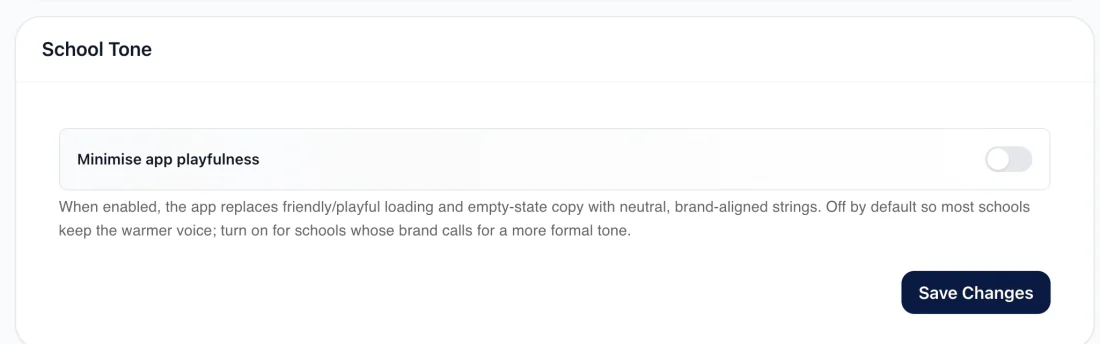
School Tone setting: Minimise app playfulness
School tone

Organisation Attributes, School Tone: “Minimise app playfulness” replaces playful loading and empty-state copy with neutral text, for schools that prefer a more formal voice.

See it up close

📚 Guides for your team

Everything your admin and marketing teams need to run the app, in one place.
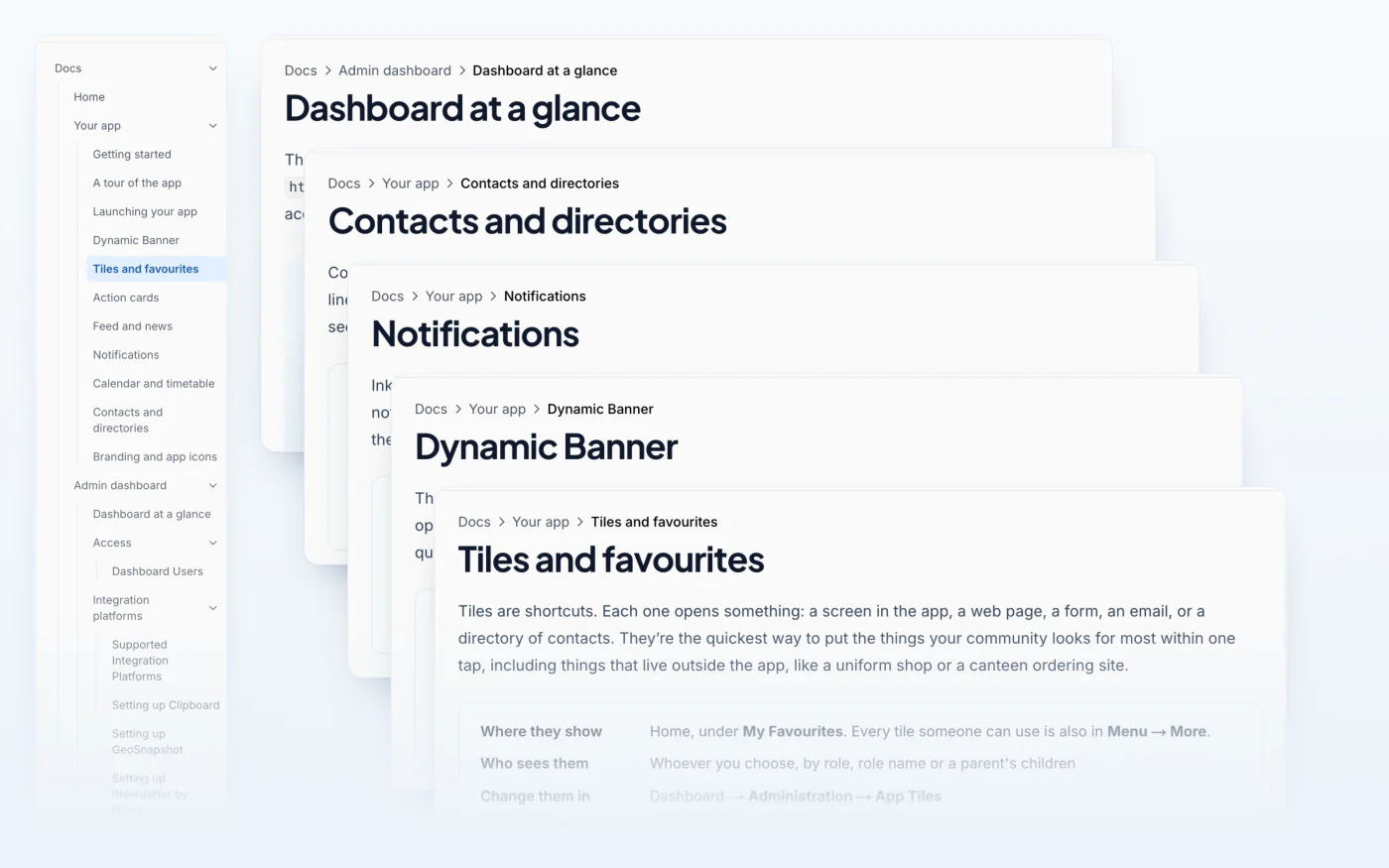
Inklass guides: a long list of guides beside cascading guide pages for Dashboard at a glance, Contacts and directories, Notifications, Dynamic Banner, and Tiles and favourites
School guides, rewritten

Our guides have been rewritten for the people who run your app: what each feature is, where it shows, who sees it, and what you can change from your dashboard, with real screenshots throughout.

See it up close

🔐 Accounts and sign-in

Staff who are also parents, families with children at several schools: every account in its right place.

Staff and parent accounts from one sign-in

For supported configurations, someone who’s both staff and a parent gets both accounts from a single sign-in, each with its own Home and labelled in the account switcher.

See 2 screenshots

What’s next

Want a closer look?

We’ll walk you through what’s new for schools with a setup like yours.

Request a demo

Questions about this release? Email us at support@inklass.education.

Last updated on